Frequently Asked Questions
Carry-on Piano
The Carry-on piano does not require a driver to work.
Following up on the Carry-on piano troubleshooting, Please follow the below instruction first to confirm if the Piano is connecting.
- Connect the Carry-on piano through the micro USB to a USB port on the computer.
- Go to device manager and the ‘sound, video, and game controllers tab on your computer system.
- This means your computer detects the piano successfully and is ready to use the software.
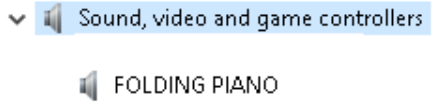
If still, your computer does not detect, please try to use a different USB port or directly connect to your computer.
Here is an example of using MIDI via Apple devices:
Connect the piano to the device (iPhone, iPad etc.) using an included USB cable (USB A to micro USB) and an Apple lightning to USB adaptor.
Depending on the generation of your iPhone or iPad, you will need the following connectivity kit:
- Apple lightning to USB 3 Camera Adapter
- Apple USB C to USB Adaptor
For more detail, here is a how-to video on Youtube: https://youtu.be/FMHvJlZ6KS0
The Standard piano’s 1-octave width is 16.5cm, white key length 15cm, and black key length 9.5cm.
Our Carry-on Piano’s 1-octave width is 16.5cm, white key length 10cm, black key length 5cm.
Yes, we recommend it for beginners. This foldable, lightweight, compact, and portable piano will undoubtedly make you carry on playing.
You don’t need to think about space, and there is no need to assemble!
We had a lot of great feedback from professional pianists as the keys are full-width, and now they can play the piano anywhere.
This is designed to be a tabletop solution. No leg stands are available.
Simply unfold onto any flat surface and carry on playing.
8 hours takes about 45 minutes to charge
The carry-on piano can connect to the software using a USB cable. There is a micro USB port on the piano, and you can connect to a USB port on your computer to use as a MIDI controller!
Although it does not come with any booklet for beginners, it comes with a sticker set that you can apply to the keys that helps you to learn the notes.
Digital Wind Instrument
Here’s the instructions for connecting the DWI to Mac via Bluetooth:
When pairing a device with your Carry-on Digital Wind Instrument, please ensure it meets the minimum requirement of Bluetooth 5.0.
- In the Audio MIDI Setup app on your Mac, choose Window > Show MIDI Studio.
- In the MIDI Studio window, click the Configure Bluetooth button in the toolbar.
- Long press the Bluetooth button on your Carry-on DWI to turn on Bluetooth connectivity.
- Select “Wind Instrument” in the list of devices, then click connect.
- Your DWI will now be visible in your DAW as a Midi peripheral.
Carry-on Bass
Official Carry-on replacement bass strings can be found via the link below: